Sunday, 26 October 2014

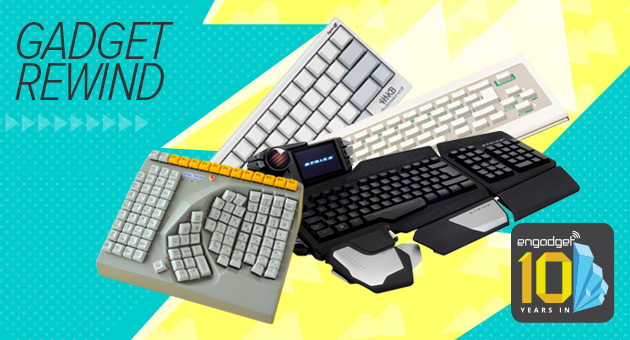
12 moments in the keyboard's history


At some point in the day, we all smash our fingers against some form of keyboard -- whether it's of the physical or virtual variety. In this week's Rewind, we take a look at how the keyboard's grown beyond its humble typewriter beginnings and taken on a life of its own.


Saturday, 25 October 2014

Science Museum exhibition explores the 'information age' (BBC news)


One of the most ambitious projects ever undertaken by the Science Museum has been opened by the Queen in London.
The Information Age gallery, which has taken three years to plan, takes visitors on a journey through the history of modern communications, from the telegraph to the smartphone.
Exhibits on show at the gallery include the first transatlantic cable which connected Europe and North America, the broadcast equipment behind the BBC's first radio programme in 1922, and Sir Tim Berners-Lee's NeXT computer, which hosted the first website.

Friday, 24 October 2014

Could robots become too cute for comfort? (BBC)


Woman and robotHumans instinctively respond to the human-like features of many robot designs


Would you share your innermost secret with a robot? And if you did, would you be comfortable knowing that the secret might be stored online in the "cloud"?

Thursday, 23 October 2014

ONE OF APPLE’S VERY FIRST COMPUTERS FETCHES RECORD-BREAKING $905,000 AT AUCTION


If you think Apple’s new 5K iMac is pricey at $2500, wait till you hear how much one of its first PCs sold for this week.
At an auction at Bonhams in New York on Wednesday, one of the tech giant’s few remaining Apple-1 machines fetched a whopping $905,000, around double the amount seller John Anderson of the Cincinnati-based AppleSiders Apple user group had been expecting. The sale also set a new record for the price paid for an Apple-1, of which only only 200 were made. The previous record was set at an auction in Germany last year when the same model fetched $671,400.

Wednesday, 22 October 2014

Robot will beam live Moon pictures to Oculus users


Scientists at Carnegie Mellon University have developed a robot which they plan to land on the Moon to act as eyes for Earth-bound space enthusiasts.
The project is part of a $30m prize from Google offered to a team that can send video back from the moon.

Monday, 20 October 2014

How the world came to be run by computer code (BBC)

The power of code


From the scythe to the steam engine, we've always used technology to control the world around us. But our ability to shape our environment has been transformed by one machine more than any other – the computer.
What makes computers so powerful is the code they run. It's incredibly flexible, controlling games one moment and spaceships the next. It came to do this thanks to individual genius, invention driven by necessity, and the power of human imagination.

7 things you didn’t know your Web browser could do

The most-used program on your computer is your Web browser, but there's a good chance you don't know much about it besides how to visit your favorite sites. There are a lot of myths about browsers, some of which I've dispelled in the past, but today I want to help you get the most out of your browser with a few simple tricks you really need to know.
1. Choose your home page
What's the first thing you see when your browser starts up? If you're using Internet Explorer, it's probably MSN's website. Chrome loads up a modified Google page. Firefox has its own start page.
But if you always head to the same site first, why not just start there?
In Chrome, click the icon on the right with the three horizontal bars and choose Settings. On the left column, choose Settings and then look under "On Startup."
Set it to "Open a specific page or set of pages" and then click the "Set pages" link. Type in one or more Web addresses and then click OK. The page – or pages – will load when Chrome starts.
In Firefox, click the icon on the right with the three horizontal bars and choose Options. On the General tab, set "When Firefox starts" to "Show my homepage." Then under that, type in the address you want for your home page. Then click OK.
In Internet Explorer, click the gear icon on the right and select Internet Options. Go to the General tab and under "Home page" enter the Web address you want to see on startup.
In Safari on Apple, go to Safari>>Preferences. On the General tab, go to "Homepage" and type in an address. Done!
Another good way to open your favorite sites is by using bookmarks. Click here to learn the ins and outs of this unappreciated browser feature.
2. Pin tabs
This is for Chrome and Firefox users who have favorite sites they leave open all day. Load up the site, right-click on the browser tab and choose "Pin Tab."
The page will appear as a smaller tab on the left side of the tab bar. No matter how many tabs you have open, it will still be sitting there. It will even reappear when you restart the browser. To unpin a tab you don't want anymore, just right-click and choose "Unpin Tab."
3. Middle-click to open tabs
If you're using a mouse that was made after the mid-2000s, then it probably has a scroll wheel. Did you know that if you press down on the scroll wheel it acts as a middle mouse button?
OK, you knew that. But did you know that clicking on a Web link with the middle mouse button opens that link in a new browser tab? Give it a try; it will change your life – or at least your browsing. Click here for even more mouse and keyboard shortcuts you should know.
4. Zoom text
Have you ever visited a page with text that was too small? If you've ever leaned in close to a computer monitor to read, you need to know this.
To zoom text – and images – in any browser, just press CTRL and the plus key at the same time. Hit it a few times to zoom way in. Too far? Hold CTRL and hit the minus key to zoom back out. CTRL and the zero key resets the zoom. Click here for even more handy computer shortcuts you can't live without.
You can also hold down the CTRL key and spin your mouse's scroll wheel. That will zoom in and out quickly.
5. Browse privately
Don't want your significant other knowing what his or her birthday present is? Want to make it hard for snoops to know where you're going online? Just fire up your browser's privacy mode.
In every browser but Chrome, press CTRL+SHIFT+P (COMMAND+SHIFT+P on a Mac). In Chrome use CTRL+SHIFT+N (COMMAND+SHIFT+N on a Mac). On Safari, private browsing is available under SAFARI in the menu bar. You'll instantly be in a separate private browsing window. Click here to learn more private browsing tricks and the limits of its privacy.
6. See if your browser needs updating
An out-of-date browser is very dangerous. It might have unfixed security flaws that hackers can use to take over your computer. Or you might just be missing out on some of the latest and greatest Internet sites that use newer Web standards. Either way, keeping your browser up to date is essential. Click here to find out instantly what browser you're using and if there's a newer version.
See your online accounts and passwords
Do you remember every online account you’ve ever made? I know I sure don’t.
Your browser does, though. That's great when you want to review your old accounts and passwords. It's not so great when a snoop gets on your computer.